
Quickstart
Create a company, connect its always-on computer, and invite the first people.
This guide sets up a company on the hosted InternKim service. InternKim provides the web app and its central services. Your company provides one computer that stays powered on and connected to the internet. The host makes outbound connections, so it needs no public address or inbound port.
Before you begin
Have these ready:
- an email address for the first administrator;
- a computer running Debian 13, Ubuntu 22.04 or 24.04, Fedora, RHEL-compatible 10 (Rocky, AlmaLinux) or Arch Linux on arm64 or amd64, or a Mac with Apple silicon and Homebrew, connected to the internet and kept awake;
- administrator access to install the host package; and
- an OpenRouter API key for the agent.
The installer prompts for your OpenRouter API key without showing the characters you type. Employees use the web app and do not install the company host on their computers.
Create the company
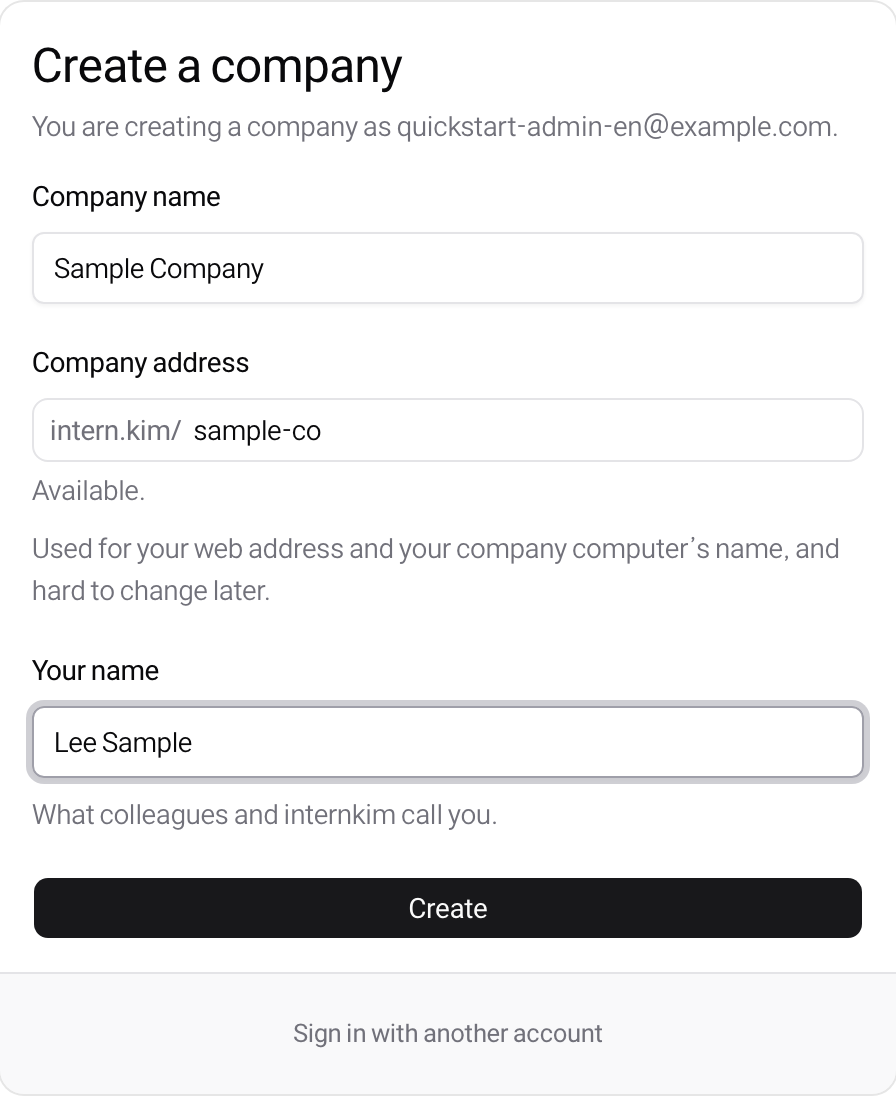
Open the company sign-up page and enter the first administrator's email address. Enter the one-time code from the email, choose a password, then register a passkey or skip that step. The company form opens after that. Enter the company name, its address and your own name.
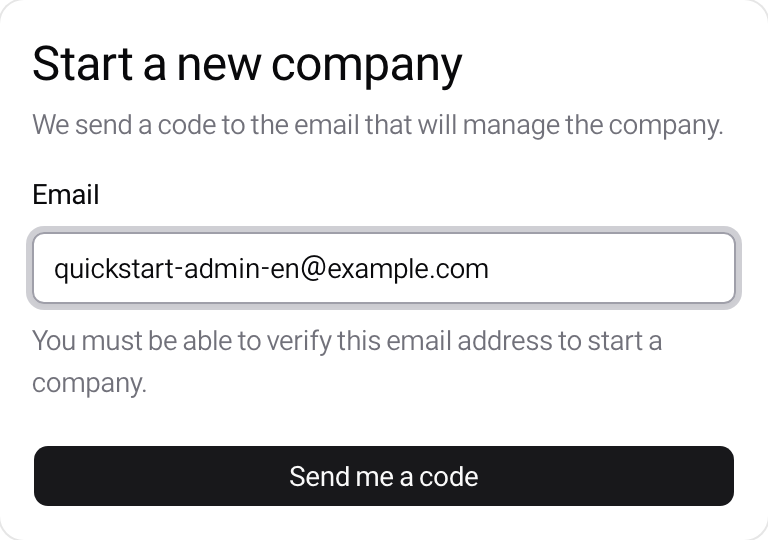
The address is the company's path in the web app,
https://intern.kim/<company-address>, and the name its company computer takes.
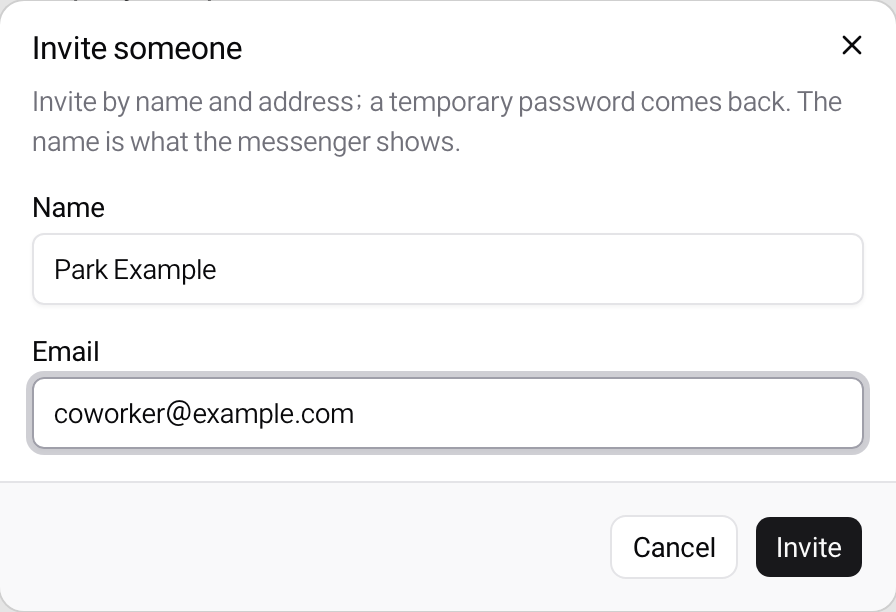
The setup screen opens next. Invite people there once the host is connected, so
their temporary passwords are shown to you.
Download the company connection file
The setup page opens after the company is created, at
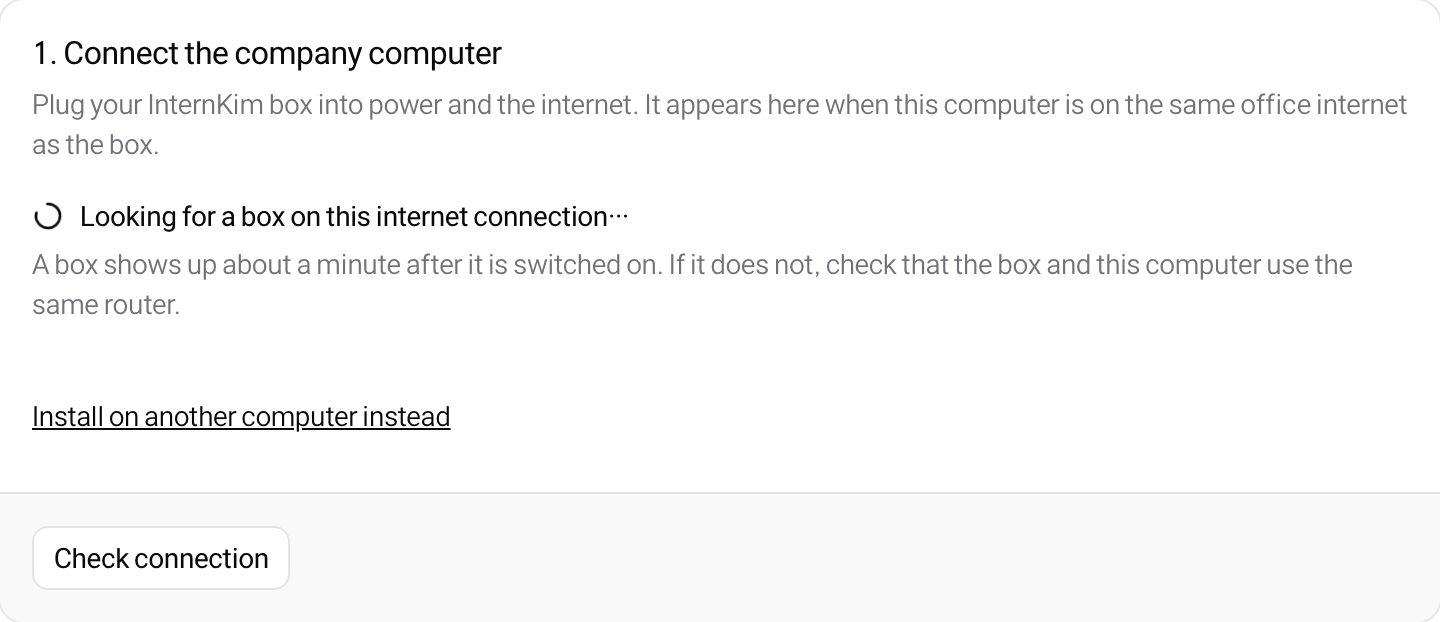
https://intern.kim/<company-address>/settings/setup. It looks for a Kim mini
on the same network first. To use a computer you already have, choose
Install on another computer instead, then Download connection file, and save internkim-host.json to the computer that
will run the company server. The file carries a key that connects a computer
to this company, so keep it on that computer and do not commit it or send it
in chat. On Linux the install spends the key: the computer then signs in with
its own, and the file connects nothing else.
The setup page provides Check connection after installation.
Install the company server
On the company computer, run the installer and then register the connection file. The first command installs the package through apt, dnf or pacman on Linux, or Homebrew on macOS. The second configures the host services and asks for the OpenRouter key.
curl -fsSL https://intern.kim/install.sh | sh -s -- host
sudo internkim install ~/Downloads/internkim-host.json
The installer registers native services that start with the computer and
restart after a failure. Keep the computer awake. When installation finishes,
open the printed /settings/setup address and choose Check connection. See
Running the host for service checks and logs.
On Linux you can skip the connection file. Run only the first command, and the
computer shows an eight-character code at http://<computer>.local:18088/ on
its own network, or prints it with sudo internkim box code. From a browser on
the same network, enter the code on the setup page, check that the last four
characters of the computer's key match the ones its page shows, and confirm. The
setup page then asks for the OpenRouter key and encrypts it so only that
computer can read it.
Invite people and try the first message
After the connection check succeeds, use the invitation section on
/<company-address>/settings/setup to add people. The page shows the temporary
password after each invitation. Hand https://intern.kim/<company-address>
and that password to the person yourself: the page shows them once and mails
nothing. They can sign in, change the password, and register a passkey.
Open the messenger from the setup page and send the agent a first request, for example:
Add an installation check to my tasks.
Open the reply below your message to see the result. You can also check the new
item in Tasks.
The agent uses the OpenRouter key entered during installation. People use the hosted web app and the company's messenger without installing the server locally.
If the computer is replaced
The connection file is tied to the company. Download a replacement from
https://intern.kim/<company-address>/settings/setup when the existing
connection must be replaced, then apply it on the new computer. The connection
file alone does not carry host data. Back up the host data described in
What lives where before moving the server. Company and
member accounts in the hosted service remain, while the old connection file
stops working after replacement.